Everything Peekaboo does.
One Windows app for the whole interview: prepare a session, get answers while the call runs, read the notes afterwards and practise out loud in between.
Answers as the question ends
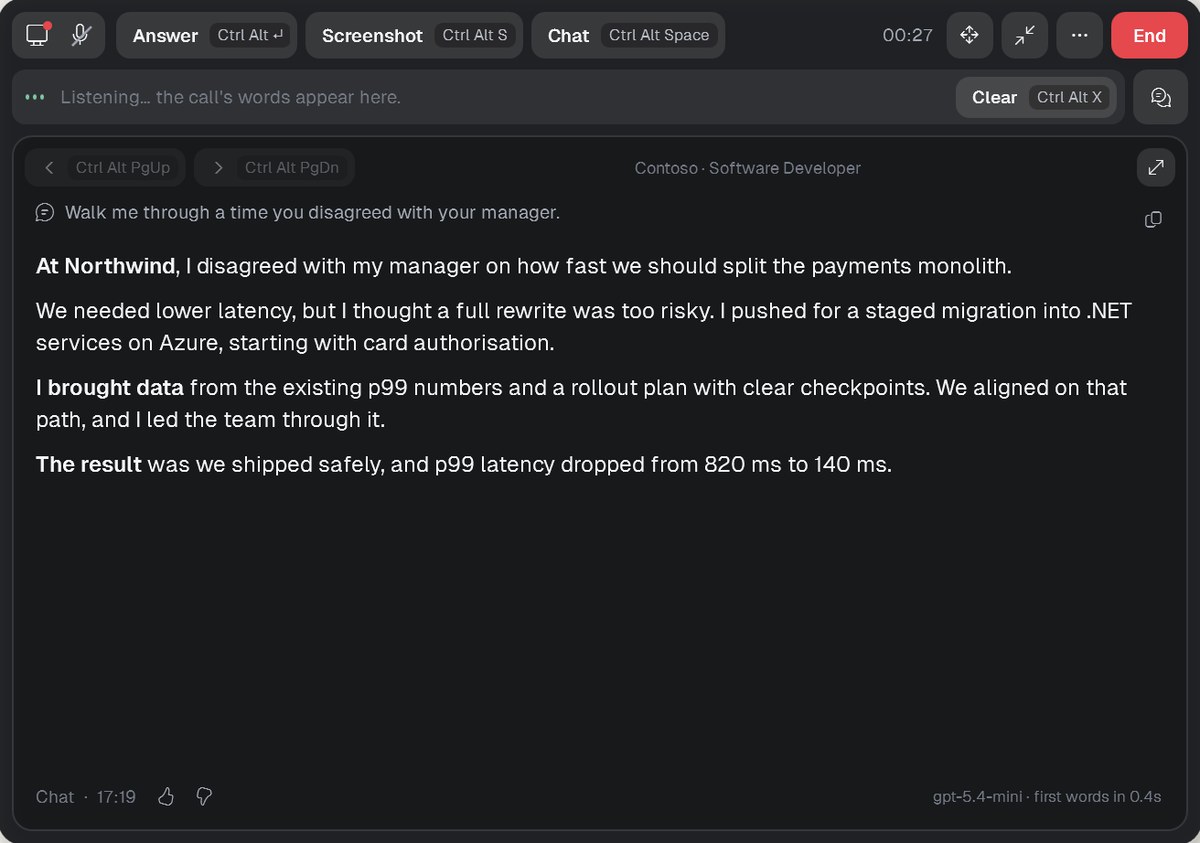
Peekaboo hears the call through your speakers, cuts it at natural pauses and spots when a question has been asked. The answer streams into the overlay in about a second, written as a script you can read out as you talk.
- The first sentence answers, so you can start talking straight away
- Short spoken paragraphs with a bold cue in each, no bullet points to translate
- Long answers scroll at speaking pace, only while you talk when your mic is on
- Stories told in order for behavioural questions; follow-ups answered with the first part
- Auto answer on or off; Ctrl Alt Enter answers on demand
Screenshot reads what's shared
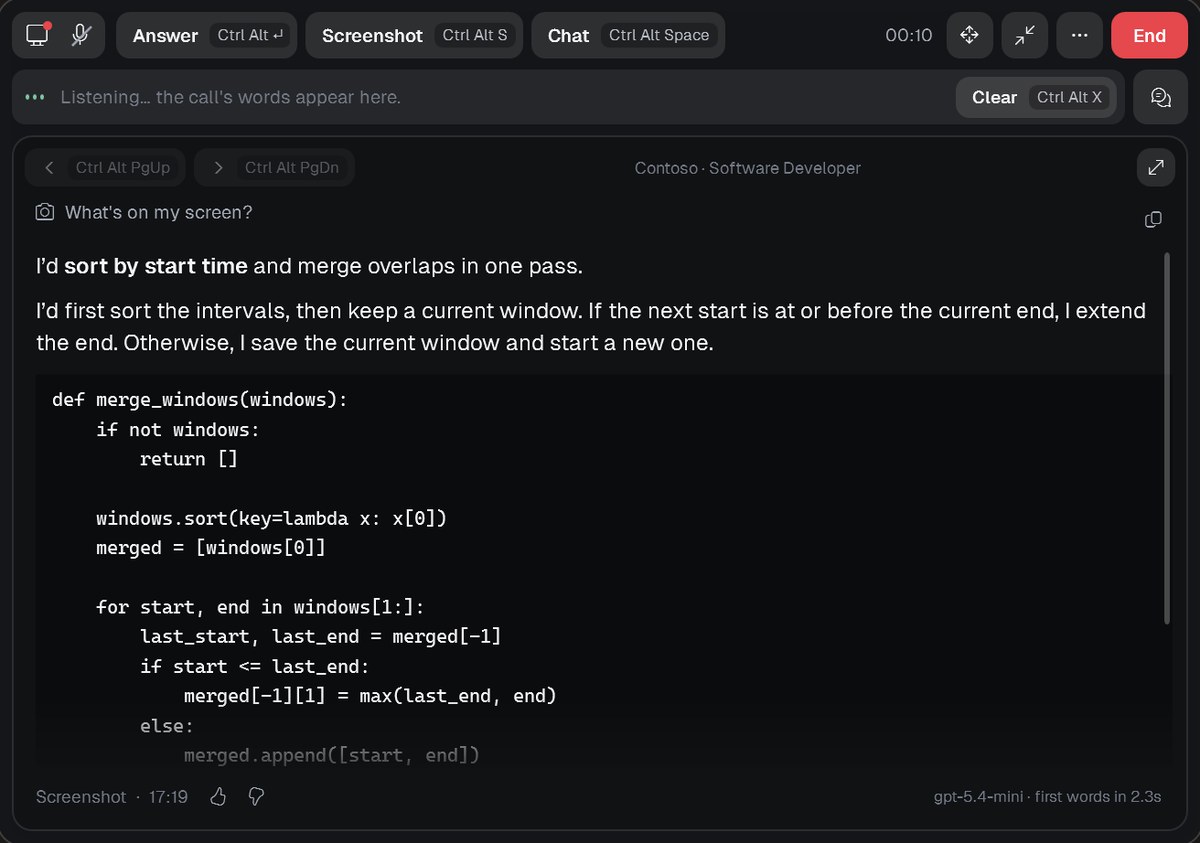
When the interviewer shares a coding problem, a diagram or a slide, press Screenshot (Ctrl Alt S). Peekaboo captures the screen the call is on, reads it, and answers: the approach, the code and its complexity. Its own windows never appear in the picture.
- Coding problems, code review and debugging
- Multiple-choice and short questions
- Type a hint first ("use Python") and it's included
Sessions hold the context
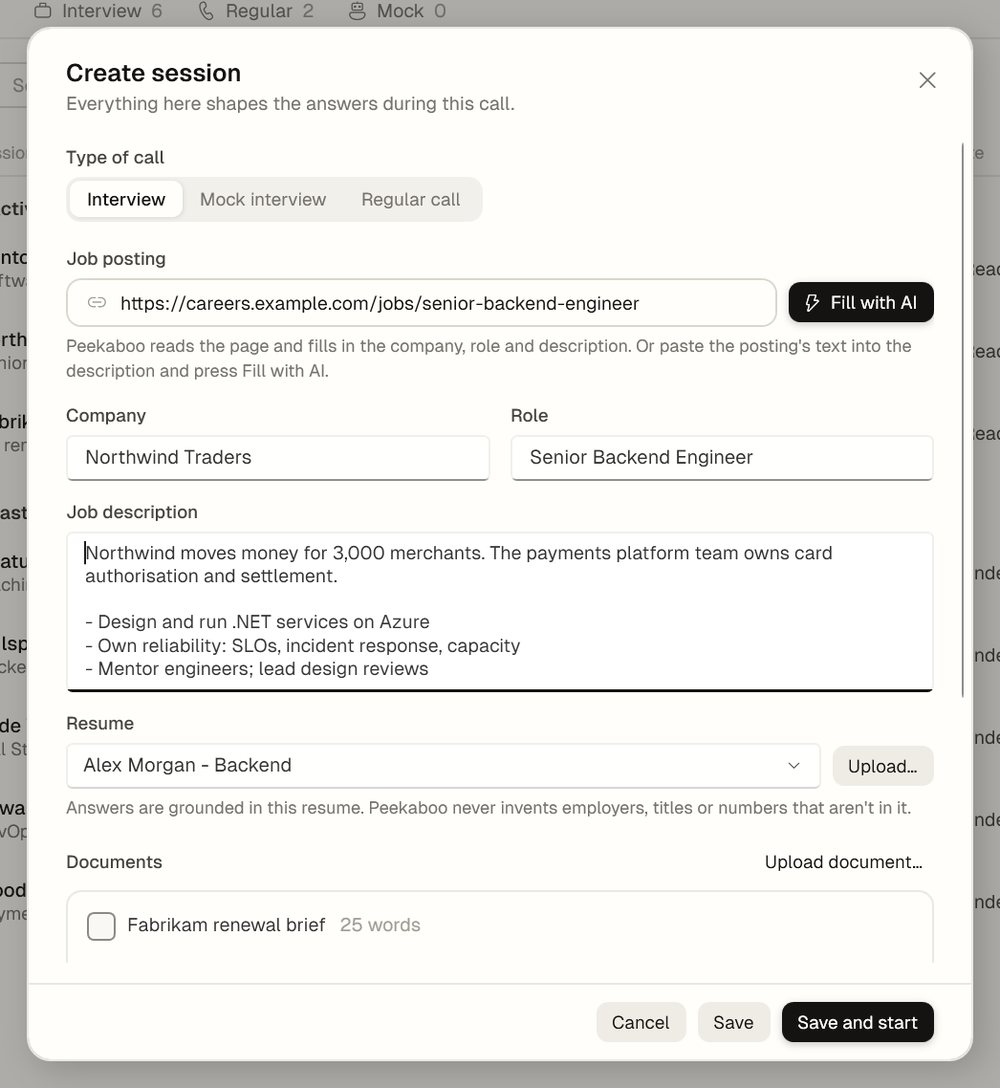
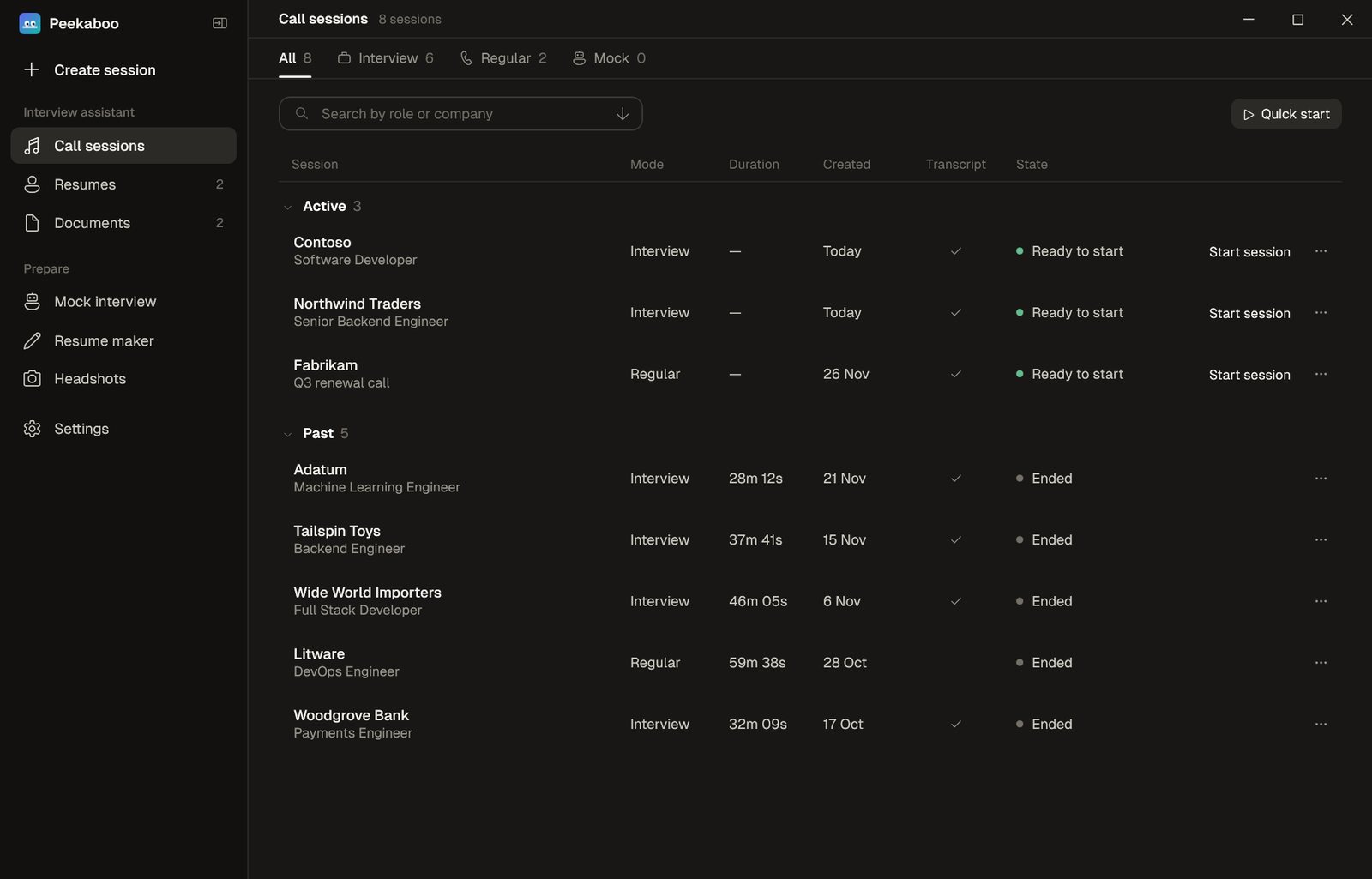
Each call gets a session: the company, the role, the resume to use, reference documents, the job description and your own instructions. Interview, regular call or mock. Answers are grounded in exactly that material.
- Paste the job posting's link and the company, role and description fill themselves in
- Resumes and documents from PDF, Word, Markdown, text or a web page
- Short, medium or detailed answers, in 17 languages
- Keep the transcript, or keep only the session's details
Notes when you hang up
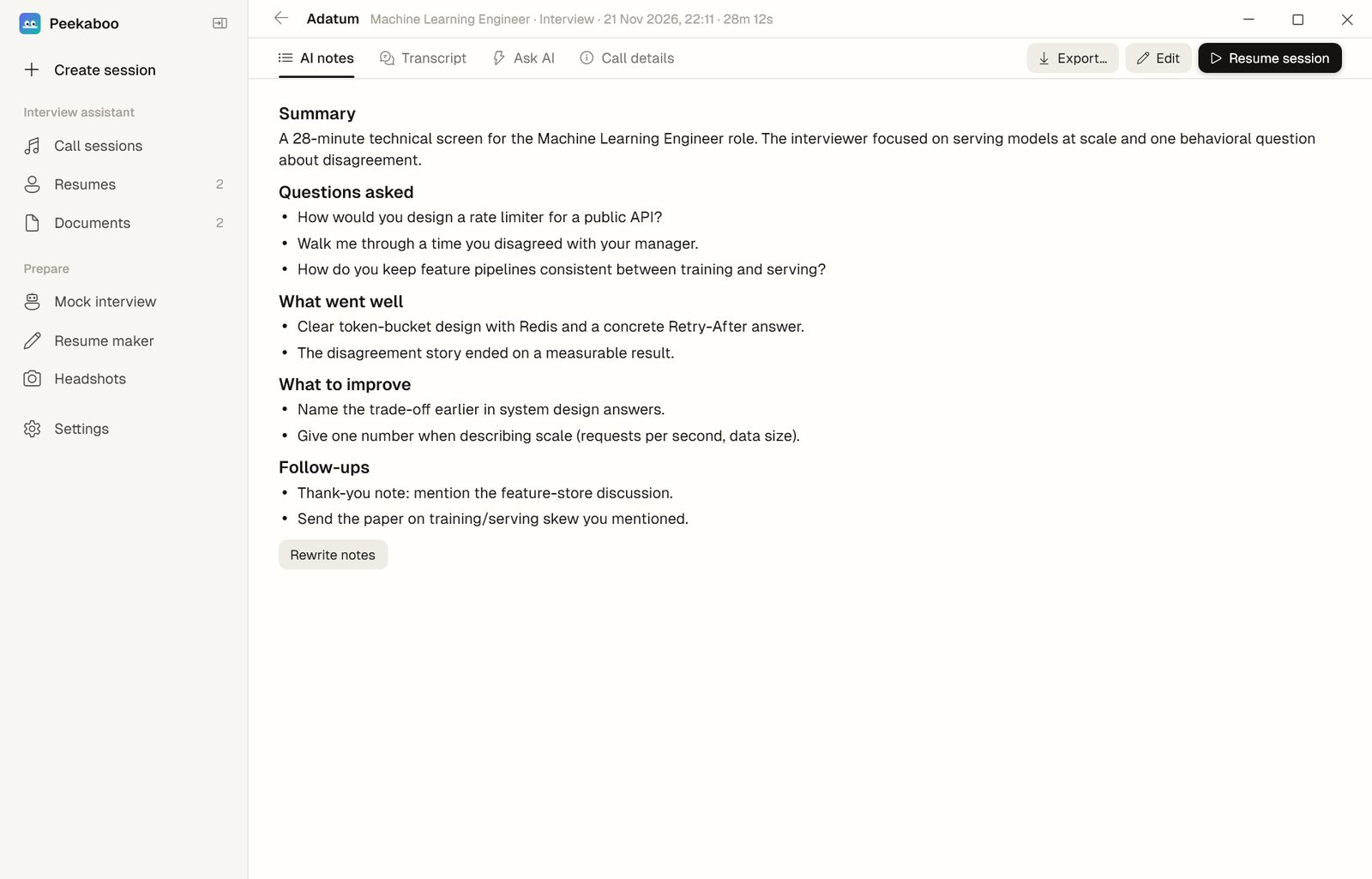
End the call and Peekaboo writes the debrief: a summary, the questions asked, what went well, what to improve and the follow-ups to send. Read the full transcript with every answer shown, or ask questions about the call.
- "What should my thank-you note say?"
- "Which answer was my weakest?"
- Export the session as Markdown
Practise with a live interviewer
Mock interviews are a spoken conversation with an AI interviewer built on GPT-Live. It asks questions for your role, listens while it speaks, and replies about a second after you finish, following up when an answer is thin. End the practice for a score, your strengths and what to work on.
A tailored resume and a better photo
The resume maker rewrites a resume for a specific job: same facts, chosen and worded for that role, nothing invented. Save it to your library or export it to Word. Headshots turn one photo into a studio-style portrait for LinkedIn, keeping your face as it is.
- Pick a look: studio grey, bright office, outdoor, warm studio, black and white
- Runs on your OpenAI key; the photo is sent only when you press the button
It notices the call starting
When a Zoom, Teams, Meet or Webex call opens, Peekaboo asks whether to start a session, and starts the one you prepared. It only reads window titles; nothing from the call itself until you say yes. Turn it off in Settings.
Light or dark, and kept up to date
Settings > Appearance follows Windows, or stays light or dark; the whole dashboard switches at once. When a new version is out, the sidebar says so, and Update now downloads it, checks its SHA-256 and restarts Peekaboo on it.
Shortcuts
Every action works from the keyboard, so you never click away from the call.
| Action | Shortcut |
|---|---|
| Answer what was just asked | Ctrl Alt Enter |
| Answer what's on the screen | Ctrl Alt S |
| Type a question | Ctrl Alt Space |
| Previous or next answer | Ctrl Alt PgUp / PgDn |
| Scroll a long answer | Ctrl Alt Up / Down |
| Start or stop listening | Ctrl Alt L |
| Show or hide the overlay | Ctrl Alt H |
| Clear the transcript | Ctrl Alt X |
| Stop the current answer | Esc |